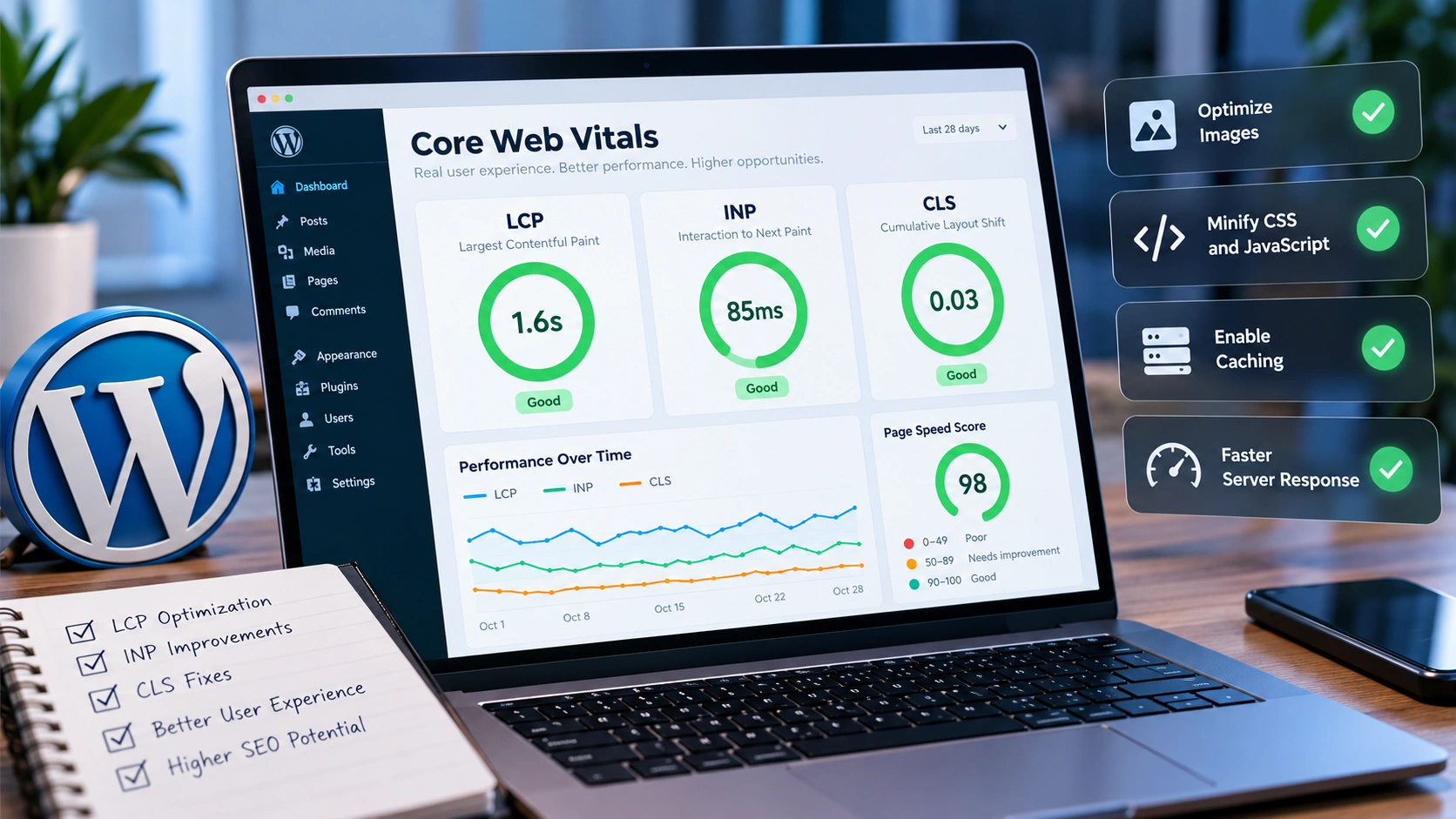
WordPress Core Web Vitals optimization should start with identifying what is actually slowing down the website, not installing another performance plugin and activating every available option.
Two WordPress websites can fail the same Core Web Vital for completely different reasons. One site may have an oversized hero image delaying the main content. Another may have optimized images but a slow server response. A third may load quickly but execute so much JavaScript that visitors notice a delay whenever they click a button or open a menu.
That distinction matters because Core Web Vitals measure different parts of the user experience.
The three main metrics are Largest Contentful Paint, Interaction to Next Paint and Cumulative Layout Shift, usually shortened to LCP, INP and CLS.
Google recommends paying attention to Core Web Vitals as part of creating a strong overall page experience. However, Google also makes it clear that good Core Web Vitals scores alone do not guarantee top search rankings. You can read Google's current guidance in its page experience documentation.
The goal is therefore not simply to chase a perfect performance score. The goal is to create pages that load quickly, respond promptly and remain visually stable for real users.
If your website has broader crawling, indexation or structure problems as well, it is worth reviewing those issues before publishing more content. I cover that process in my guide on fixing technical SEO problems before publishing more content.
What Core Web Vitals Measure
Before changing your WordPress configuration, you need to understand what each metric represents.
Largest Contentful Paint
Largest Contentful Paint measures how quickly the largest important visible element appears within the visitor's viewport.
On many WordPress websites, the LCP element is a hero image, page heading, featured image or large banner near the top of the page.
A poor LCP can come from several different sources.
The main image may be too large.
The server may take too long to generate the HTML.
A stylesheet may delay rendering.
A custom font may postpone visible text.
The browser may not discover an important image early enough.
This is why simply installing an image optimization plugin does not automatically solve poor LCP.
You first need to find out which element is being measured and what is delaying it.
Interaction to Next Paint
Interaction to Next Paint measures how responsive a page feels when a visitor interacts with it.
Imagine someone opening a mobile navigation menu, selecting a filter, clicking an accordion or submitting part of a form.
If the browser is busy processing JavaScript and takes too long to visually respond, the page feels sluggish.
That delay can contribute to poor INP.
WordPress sites can accumulate JavaScript from themes, page builders, analytics systems, cookie tools, advertising scripts, live chat platforms, popups and plugin extensions.
Each script may seem relatively small on its own, but the combined effect can become substantial.
Cumulative Layout Shift
Cumulative Layout Shift measures unexpected movement while a page is loading.
You have probably experienced this yourself.
You start reading text and the entire paragraph suddenly moves because an image loads above it.
You try to press one button, but another element shifts into its place.
That is the type of visual instability CLS is designed to identify.
Images without dimensions, delayed advertisements, embedded videos, custom fonts and dynamically inserted banners can all contribute to the problem.
Start With Real Data Before Changing WordPress
A common performance mistake is treating one test result as if it represents every visitor.
It does not.
Laboratory tools such as Lighthouse can simulate page loading under controlled conditions. These tests are useful because they provide repeatable diagnostics and can help isolate technical problems.
Real-user data answers a different question.
It tells you what visitors actually experience across different devices, locations and network conditions.
This distinction is important.
Your site may perform extremely well on your desktop computer while real mobile visitors experience much slower interactions.
Google Search Console can help identify groups of pages with Core Web Vitals problems, while PageSpeed Insights can provide both field data, when available, and laboratory diagnostics.
Use both.
Field data helps you identify whether real users are experiencing a problem.
Laboratory testing helps you investigate why that problem may be happening.
For broader issues involving crawling, canonicals, sitemaps and internal links, my technical SEO guide explains how those elements fit together.
How to Improve LCP on WordPress
Poor LCP is frequently treated as an image problem.
Sometimes it is.
But not always.
Start by identifying the actual LCP element.
If the LCP element is a hero image, examine the image dimensions and file size.
Uploading a 4,000-pixel-wide photograph and displaying it in a 1,200-pixel container forces the visitor to download much more data than necessary.
Resize images close to the dimensions at which they are displayed and use appropriate compression.
Modern formats such as WebP can also reduce file size substantially when used correctly.
The goal is not to destroy image quality.
The goal is to remove unnecessary bytes that the visitor does not need.
Be Careful With Lazy Loading Above the Fold
Lazy loading can improve performance by delaying images that are not immediately visible.
That makes sense for images farther down the page.
However, the main hero or featured image often needs to load immediately.
If the most important visible image is lazy loaded too aggressively, the browser may wait longer before requesting it.
That can actually make LCP worse.
Optimization therefore needs to consider the position and purpose of each image rather than applying the exact same rule to every image on the site.
Check Server Response Time
Sometimes developers spend hours compressing images while the real delay happens before the browser receives the HTML.
WordPress pages may need to execute PHP, query the database, load plugins and build the final page before the response is sent.
If that process is consistently slow, front-end improvements alone will not completely solve the problem.
Caching can help by reducing repeated server work.
Instead of rebuilding an unchanged page for every visitor, a caching layer may serve a previously generated response.
The correct setup depends on the website.
A small business website and a WooCommerce store should not necessarily use the exact same caching configuration because e-commerce pages may contain sessions, carts and personalized content.
If you want this type of performance work handled as a focused project, my Website Speed Improvement package includes performance auditing, image optimization, CSS and JavaScript review, caching configuration and Core Web Vitals improvements.
Reduce Render-Blocking Resources
Large CSS files and JavaScript can delay the browser from displaying important content.
This is where WordPress performance optimization needs careful testing.
Many optimization plugins offer options such as defer JavaScript, delay scripts, remove unused CSS or combine files.
Those settings can help, but enabling everything at once is risky.
Moving the wrong script can break menus, sliders, contact forms, checkout functionality or tracking.
The safest approach is to make one meaningful change, test the result and confirm the site still works properly.
How to Improve INP on WordPress
INP problems can be more difficult to diagnose because they happen during user interaction.
JavaScript is frequently involved.
A WordPress website may load JavaScript from:
the theme,
Elementor or another page builder,
form plugins,
analytics tools,
cookie consent systems,
live chat,
advertising platforms,
popups,
social widgets,
and third-party embeds.
The problem is rarely one script alone.
It is often the combined amount of work the browser has to perform.
Remove Scripts You No Longer Need
Before trying to optimize JavaScript, ask a simpler question.
Does the website actually need every script being loaded?
Old plugins frequently remain active long after their original purpose has disappeared.
Tracking tools can also accumulate over time.
One team member adds analytics.
Another adds heatmaps.
Someone else adds chat.
Later a marketing agency adds additional tracking.
Eventually the visitor's browser has to process all of it.
Removing unnecessary functionality is often safer and more effective than optimizing code that should not have been loading in the first place.
Load Assets Only Where Needed
Some WordPress plugins load their scripts and styles across the entire website even when their feature appears on only one page.
For example, a contact-form script may not need to load on every blog article.
A slider library may not need to appear on pages that contain no slider.
A WooCommerce script may not need to affect informational content outside the store.
Conditionally loading assets can reduce unnecessary browser work.
However, this should be implemented carefully because aggressive unloading can break functionality.
Simplify Heavy Page Builder Layouts
Page builders such as Elementor make WordPress easier for non-developers to manage, but complex designs can create large DOM structures and additional scripts.
That does not mean Elementor is automatically slow.
It means every widget and effect should have a purpose.
Deeply nested containers, multiple sliders, entrance animations, counters, carousels, popups and decorative effects can create more work for the browser.
Sometimes simplifying the layout improves both performance and usability.
A clearer page can also convert better because visitors spend less time trying to understand where to look.
That relationship between speed, clarity and conversion is also important when creating business websites. I discuss it further in What Makes a Business Website Convert Visitors Into Leads?.
How to Reduce CLS on WordPress
CLS problems are often easier to notice because you can see the page move.
A page should not repeatedly rearrange itself while someone is trying to use it.
One of the simplest fixes is ensuring images have defined dimensions.
When the browser knows the width and height of an image before the file finishes downloading, it can reserve the appropriate amount of space.
Without that information, surrounding content may load first and then move when the image appears.
The same principle applies to video embeds, advertisement containers and other delayed elements.
Reserve space whenever possible.
Watch Custom Font Loading
Fonts can also contribute to layout shifts.
A fallback font may appear first.
When the custom web font becomes available, characters may become slightly wider or narrower.
That change can cause lines of text to reflow.
Font optimization should therefore consider more than download size.
Only load font weights you actually use.
Avoid loading several unnecessary families.
Choose sensible fallback fonts.
Where appropriate, hosting fonts locally can also give you more control over delivery.
Do Not Install Five Optimization Plugins to Fix One Problem
WordPress makes performance tools easy to install.
That convenience can create its own problem.
Multiple optimization plugins can overlap.
One plugin may minify CSS while another also minifies it.
Your host may already provide page caching while another plugin adds another caching layer.
Two plugins may both attempt to lazy-load images.
At that point, debugging becomes much harder.
More performance software does not automatically mean better performance.
A cleaner system is usually easier to maintain.
For example:
Hosting or server configuration can manage full-page caching.
One performance tool can manage front-end optimization.
Your image workflow can handle resizing and compression.
The fewer overlapping tools you have, the easier it becomes to identify the source of a problem.
Test Important WordPress Templates Separately
A homepage passing Core Web Vitals does not mean the entire website performs well.
WordPress websites contain several templates.
You may have:
service pages,
blog posts,
blog archives,
landing pages,
contact pages,
portfolio pages,
category pages,
and e-commerce templates.
Each one can load different resources.
A blog article may be lightweight while the homepage contains sliders and animations.
A service page may load a large hero image.
WooCommerce product pages may load additional scripts that never appear elsewhere.
Test representative examples from each major template.
If twenty service pages share the same slow template, fixing the template may improve all twenty at once.
That usually creates much more value than optimizing pages individually.
You can see this type of structure on my own services page, where web development, WordPress and SEO performance are separated into clearer service areas rather than forcing every topic into one generic page.
Mobile Performance Deserves Extra Attention
A website can feel extremely fast on a developer's desktop and still perform poorly on a phone.
Desktop computers typically have faster processors.
Office or home broadband can also hide problems that become obvious on weaker mobile connections.
Large hero images, animation libraries, third-party scripts and complex menus may have a much larger impact on mobile visitors.
Responsive design alone does not guarantee good mobile performance.
Hiding a large element with CSS does not necessarily prevent its files from downloading.
If a two-megabyte image downloads and is then hidden from the user, the visitor may still pay the performance cost.
This is why mobile optimization needs to consider what is actually requested by the browser.
Core Web Vitals Are Not an SEO Shortcut
Core Web Vitals matter, but they are not a shortcut to rankings.
Google's current page experience documentation explicitly states that Core Web Vitals are used by its ranking systems while also explaining that good scores alone do not guarantee a page will rank at the top.
That distinction is important.
A technically perfect page that does not answer the searcher's question is not automatically more useful than a slightly slower page with substantially better information.
Performance supports SEO.
It does not replace relevance, authority, strong content, internal linking or technical accessibility.
This is why I recommend looking at Core Web Vitals as one part of a broader SEO and website-performance strategy.
My SEO and website performance services combine technical SEO, Core Web Vitals, on-page improvements, schema and internal-link work rather than treating speed as an isolated number.
A Practical WordPress Core Web Vitals Workflow
When reviewing a slow WordPress website, use a logical process.
First, identify which metric is causing the problem.
Is it LCP?
INP?
CLS?
Then determine whether the issue appears in real-user data, laboratory testing or both.
Next, identify the element, script or request most closely associated with the poor result.
Check whether the issue exists on one page or across an entire template.
Make the smallest change likely to solve the underlying problem.
Retest.
Check mobile performance.
Test important forms.
Test navigation.
Check analytics and tracking.
If the site uses e-commerce, test product pages, cart functionality and checkout.
Only then move to the next optimization.
This process is slower than activating twenty optimization options at once, but it produces a website you can actually understand and maintain.
When WordPress Performance Problems Need Deeper Investigation
Sometimes the obvious changes are not enough.
The images are already compressed.
Caching is active.
Unused plugins have been removed.
The site still feels slow.
At that point, deeper investigation may reveal issues such as:
slow database queries,
excessive autoloaded WordPress options,
poor PHP performance,
a heavy theme,
third-party API requests,
large DOM structures,
slow hosting,
or inefficient custom code.
These problems require diagnosis.
Another generic checklist is unlikely to solve them.
Performance work becomes more effective when you can trace a slow metric back to a specific technical cause.
That is the difference between making a website look optimized inside a plugin dashboard and actually making the website faster for users.
If the problems also involve crawling, canonicalization, indexation or site architecture, consider a broader Technical SEO Audit rather than treating performance as the only issue.
Improve the Experience, Not Just the Score
WordPress Core Web Vitals optimization is ultimately about removing unnecessary waiting and instability.
Improve LCP so important content becomes visible quickly.
Improve INP so visitors receive a fast response when they interact with the page.
Improve CLS so the page stays stable while it loads.
But do not stop at the performance score.
Look at the whole experience.
Can visitors understand the page quickly?
Does the mobile version work well?
Are forms reliable?
Can people navigate without confusion?
Does the page actually answer the question that brought the visitor there?
Performance is most valuable when it supports those goals.
If your WordPress website has poor Core Web Vitals, slow loading times or performance problems that are difficult to identify, you can review my WordPress, development and website-performance services or start with my Website Speed Improvement package.