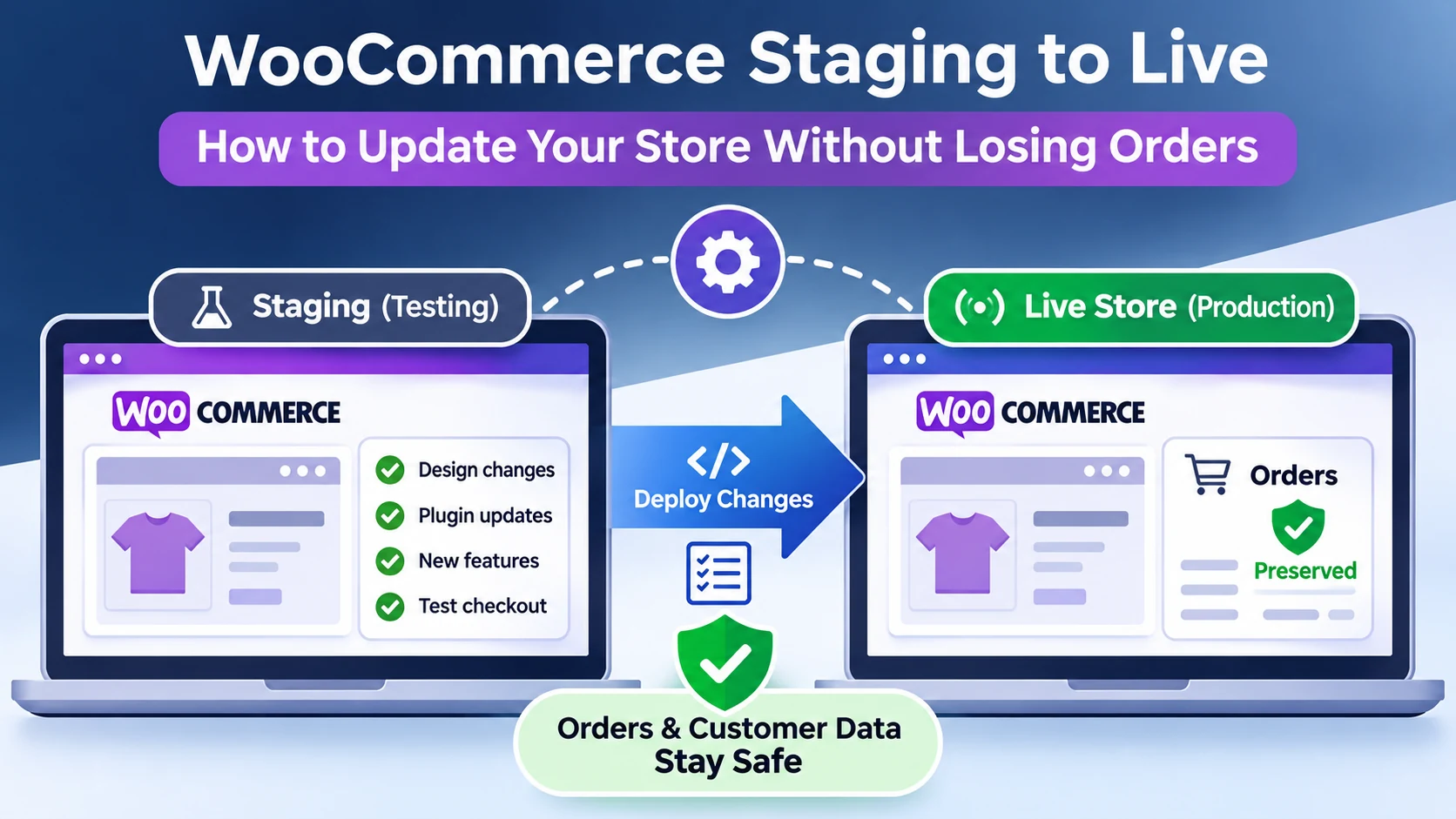
Updating a WooCommerce store should improve your website, not put your business transactions at risk.
Yet one of the most dangerous mistakes during WooCommerce development happens when someone pushes a staging website to production without checking what will happen to the live database.
Your new design might appear perfectly. Your updated plugins might work. Your checkout might even function normally.
But orders placed after the staging site was created could disappear from the WordPress dashboard.
The safest approach is to test changes on staging, protect the live database, and deploy only what actually needs to change.
In this guide, I'll explain why WooCommerce staging deployments can overwrite orders, how to avoid that problem, and what to check before and after updating a production store.
Why WooCommerce Staging Deployments Can Delete Orders
A staging environment is a separate copy of your website used for testing.
For example, suppose your WooCommerce store is accepting orders while a developer works on a redesign.
On Monday, the developer creates a staging copy containing the store's files and database.
Between Monday and Friday, customers continue purchasing products through the live website.
On Friday, the developer pushes the entire staging website back to production.
If the deployment overwrites the production database, the new orders received since Monday may no longer exist in the live database.
The staging database represents an older snapshot of the store. It does not automatically contain transactions that happened on production afterward.
This distinction matters because WooCommerce stores much of their business information in the database, including orders, product information, customer records, and website settings.
The official WordPress staging documentation recommends avoiding unnecessary database replacement when deploying changes to an active website.
Understand What You Are Moving From Staging to Live
Not every website change needs the same deployment process.
Broadly, WordPress stores information in two places.
Website Files
These include:
WordPress themes and their code.
Plugins and custom extensions.
PHP, CSS, and JavaScript files.
Images, documents, and other uploaded assets.
Changes to custom theme code or plugin files may be deployed without replacing the live database.
Website Database
The database contains information such as:
WooCommerce orders and order-related metadata.
Customer accounts and account details.
Products, prices, and inventory information.
Pages, posts, and some page-builder layouts.
Plugin settings and configuration.
Shipping, tax, and other store configuration data.
WooCommerce may store orders using High-Performance Order Storage (HPOS), which uses dedicated order tables, or another supported order-storage structure.
This means you cannot assume that excluding a single database table protects every order-related record.
Before migrating database changes, identify the store's order-storage configuration and the tables involved.
For developers, WooCommerce's version control and deployment documentation provides a useful starting point.
Step 1: Create a Fresh Backup of Your Live WooCommerce Store
Before deploying anything, create a current production backup.
A reliable backup should include both the database and the relevant website files.
For an active eCommerce store, an old overnight backup may not be sufficient. Orders and other transactions could have occurred since that backup was created.
Before proceeding, verify:
The database backup completed successfully.
WordPress themes, plugins, and uploads are covered.
The backup is stored somewhere accessible if production fails.
The restoration procedure is documented.
The backup is recent enough for the deployment risk.
Ideally, your backup system should support restoring to a separate environment so you can verify that the backup is usable.
A backup that has never been tested is not the same as a verified recovery plan.
Also consider what happens to orders arriving after the backup. A full database restore can remove those newer transactions, so recovery planning must account for them.
Step 2: Prepare Your Staging Environment Correctly
A staging site should behave like your live store for testing purposes, but it should not interact with real customers as though it were production.
Important staging safeguards include restricting public access, disabling live payment processing, and preventing customer notifications from being sent accidentally.
WordPress also supports an explicit environment setting.
In your staging site's wp-config.php, you can use:
define( 'WP_ENVIRONMENT_TYPE', 'staging' );This tells compatible WordPress components that they are operating in a staging environment.
However, this setting alone does not automatically isolate payment gateways, email systems, background tasks, and third-party integrations.
You should separately review any integrations capable of triggering real-world activity.
For example, check whether your staging copy can:
Send emails to actual customers.
Execute live subscription renewals.
Synchronize products with an inventory provider.
Trigger webhooks to external services.
Process payments using production credentials.
It is also important to restrict staging-site indexing and public access. A private staging site generally should not appear in Google Search or expose customer information.
Step 3: Test All WooCommerce Changes Before Deployment
Successful testing means more than checking whether the homepage looks correct.
An online store contains multiple connected workflows. A change to one component can affect something elsewhere.
Test the Frontend
Check product pages, category pages, navigation, search functionality, and mobile responsiveness.
Confirm that variations, product images, and interactive elements behave correctly.
If the update involves CSS or JavaScript, inspect important templates rather than testing only one page.
Test the Shopping Cart
Add products to the cart.
Change quantities.
Remove products.
Apply valid and invalid coupons.
Check whether shipping estimates and totals update correctly.
Test Checkout
Use the payment provider's documented sandbox or test mode.
Test the checkout flow with safe test accounts and addresses.
Verify that order confirmation pages, order statuses, and test emails work as expected.
If the store supports subscriptions, bookings, digital products, or special fulfillment workflows, include those too.
Check for Plugin Conflicts
WooCommerce stores often depend on several interconnected plugins.
A payment gateway, shipping extension, custom checkout plugin, or page builder may behave differently after an update.
Inspect PHP errors, browser console errors, and relevant WooCommerce logs.
Testing these workflows before release helps detect problems before customers encounter them.
Step 4: Choose the Right Deployment Method
This is the most important decision.
Option A: Deploy Code Files Only
If your changes involve custom PHP, CSS, JavaScript, or theme files, a files-only deployment may be appropriate.
For instance, suppose you modified a custom theme's product template.
You could test that change on staging and then deploy the relevant theme files to production.
Your production database stays in place.
This means newer customer orders are not replaced by an outdated staging database.
However, files-only deployment is not sufficient for every change.
A plugin may require database migrations. A new template may depend on settings or data created in staging.
Always determine those dependencies before deploying.
Option B: Recreate Configuration Changes on Production
Sometimes the safer approach is to reproduce tested settings on the live website.
For example, a small WooCommerce configuration adjustment might be easier to apply manually during a controlled maintenance window.
This avoids replacing unrelated production database records.
Document the staging configuration first, then carefully reproduce and verify it on production.
Option C: Perform a Selective Database Migration
More complex projects may require migrating specific database changes.
Examples include large page-builder changes, new product structures, or custom functionality that stores configuration in WordPress tables.
These migrations require additional planning.
Do not assume that copying all tables except the obvious order tables is safe.
Product data, customer information, plugin settings, inventory records, and order-related structures may have dependencies across multiple tables.
Selective database migrations should be tested against a recent production copy, with a clear rollback and data-reconciliation plan.
Step 5: Be Careful With Elementor and Other Page Builders
One reason WordPress deployments can become complicated is that visual changes are not always stored exclusively in theme files.
For example, Elementor layouts and settings may be stored in the WordPress database.
Imagine redesigning a WooCommerce product page on staging.
You finish the design, test it, and choose to deploy only files.
The design might not appear on production because the required page-builder data was never transferred.
But pushing the entire staging database could overwrite customer activity.
The solution is not automatically to choose a full database deployment.
Instead, identify where the layout is stored and whether your builder supports exporting and importing the specific templates or settings.
Where appropriate, transfer only the necessary content and verify its dependencies.
For more complex redesigns, define a deployment strategy before development begins.
That is much safer than discovering database dependencies on launch day.
Step 6: Protect Live Orders During Deployment
Before deploying major changes, check the latest production activity.
Ask these questions:
Is the website currently receiving orders?
Are any payments pending?
Are new customer accounts being created?
Are inventory integrations running?
Will the deployment modify database tables?
Can the changes be released without interrupting checkout?
For updates that require database changes or temporary downtime, schedule a controlled maintenance window.
If necessary, temporarily prevent new checkouts while the critical migration occurs.
Do not assume that enabling a maintenance page automatically stops payment callbacks, subscription processes, or external integrations.
Those systems may need their own safeguards.
For particularly complex stores, transactional consistency matters as much as website availability.
A successful deployment must preserve the relationship between payments, order records, inventory changes, and fulfillment activity.
Step 7: Verify the Live Store Immediately After Deployment
Once the changes are live, test the production website again.
A successful staging test does not guarantee that production will behave identically.
Differences in caching, PHP configuration, server resources, payment credentials, or third-party services can affect the result.
Start by checking the latest real orders against the records captured before deployment.
Then verify customer accounts, product prices, stock quantities, and key plugin settings.
Complete an authorized production checkout test where practical, accounting for any real charges and refunds.
Also check:
Product pages on mobile and desktop.
Add-to-cart functionality.
Checkout and payment processing.
Shipping and tax calculations.
Order confirmation emails.
PHP and JavaScript errors.
Caching and page-loading behavior.
If a problem appears, investigate before making further uncontrolled changes.
Repeatedly restoring database snapshots can make a data-loss incident worse by removing more recent orders.
What If WooCommerce Orders Already Disappeared?
If orders are missing immediately after a staging deployment, first stop additional database overwrites.
Preserve the current production state and any available pre-deployment backup.
Next, identify whether the missing orders are absent from the database, hidden by a configuration issue, or associated with an order-storage or synchronization problem.
Review payment gateway transaction records and any external order-management integrations.
These systems may provide evidence that transactions occurred, but they are not necessarily complete backups of WooCommerce order data.
If the orders were overwritten, recovery may involve restoring data from a backup into a separate recovery environment and carefully reconciling missing records.
Do not blindly restore an older database over a production store that has continued receiving orders.
That can remove transactions created after the backup.
If you cannot establish which records changed, involve an experienced WooCommerce developer before attempting database-level repairs.
Does High-Performance Order Storage Make Staging Deployments Safe?
WooCommerce High-Performance Order Storage (HPOS) uses dedicated tables for order data rather than relying only on the traditional posts and postmeta storage model.
It can improve how WooCommerce stores and retrieves orders.
But HPOS does not make unsafe deployments harmless.
An incorrect database push can still overwrite important records.
In fact, developers must understand which storage system is authoritative and how relevant extensions interact with it.
The presence of dedicated order tables is not permission to migrate the rest of the database without reviewing dependencies.
For additional technical guidance, consult the official WooCommerce developer documentation.
A Safer WooCommerce Deployment Checklist
Before pushing changes from staging to live, confirm the following:
A fresh production backup exists and recovery has been considered.
Staging is isolated from real payments, emails, and external events.
The changes have been tested across critical store workflows.
You know which changes involve files and which involve database records.
The deployment will preserve new production orders and customer activity.
Any required database migrations have been tested.
A maintenance window is planned if necessary.
The deployment includes a rollback and reconciliation plan.
Product, cart, checkout, and order workflows will be verified after release.
Someone is responsible for monitoring the store immediately afterward.
Final Thoughts: Treat WooCommerce Updates as Production Deployments
A WooCommerce website is more than a collection of pages.
It is a transactional system connected to customers, payments, inventory, and fulfillment processes.
That is why updating a live store requires more care than copying a development website into place.
A reliable workflow separates code changes from business data, tests dependencies before deployment, and verifies that production transactions remain intact afterward.
The objective is not simply to launch the new version of your website.
It is to launch the new version without damaging the business activity already happening on the existing one.
Need Help Updating or Maintaining Your WooCommerce Store?
I'm Amarildo Prendi, an independent web developer working with WordPress, WooCommerce, website maintenance, performance optimization, and custom development.
If your store requires plugin updates, a redesign, technical troubleshooting, or a safer staging-to-production workflow, I can review the current setup and help identify a deployment approach that protects critical website functionality.
Explore my website maintenance and development packages, or contact me directly to discuss your project.