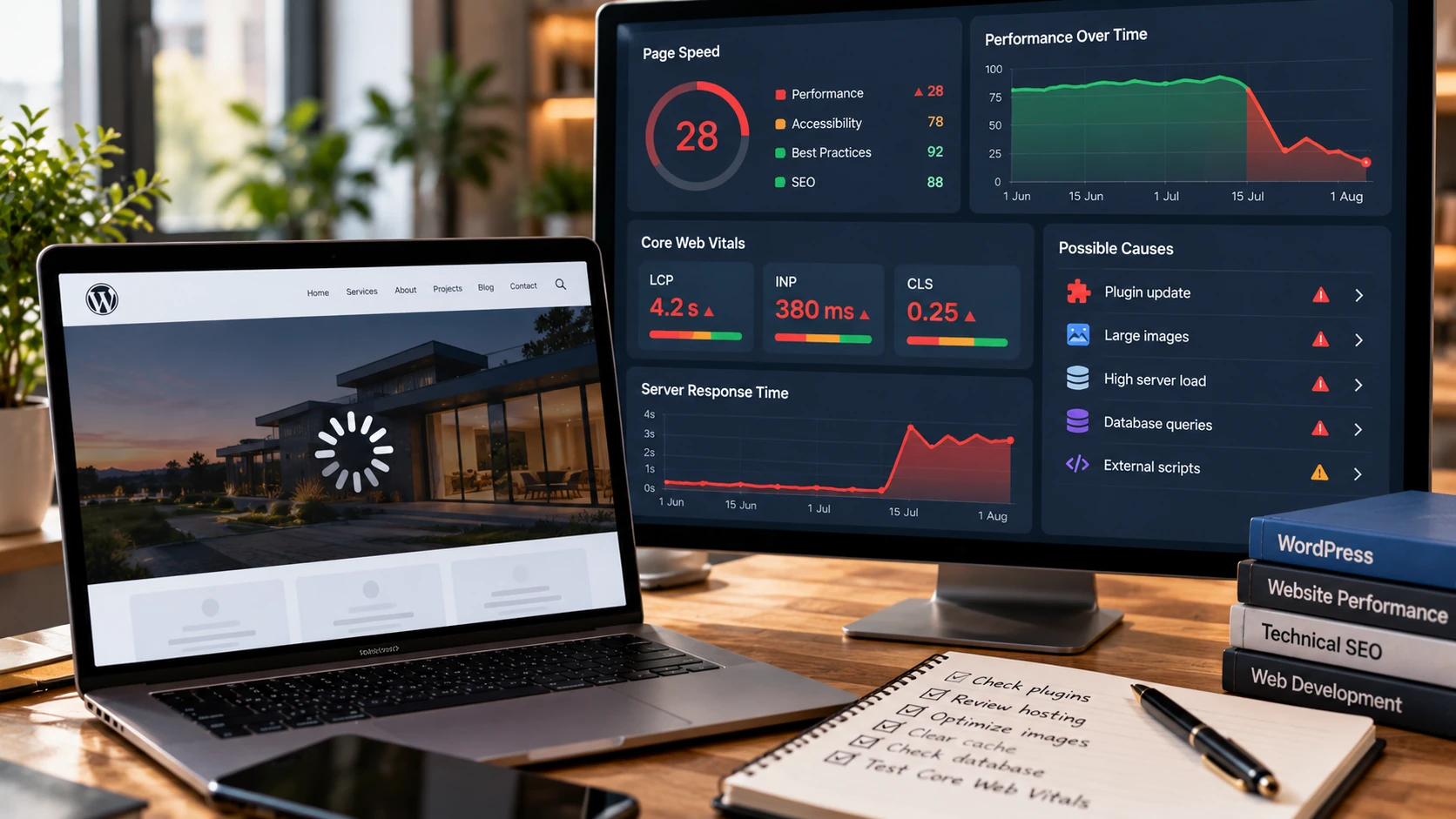
If your WordPress site suddenly became slow, the most useful question is not “Which speed plugin should I install?”
The better question is:
What changed?
A WordPress website that has always been slow may have deeper design, hosting or architecture problems. But when a site performed well last week or last month and suddenly starts taking several seconds to load, there is usually a specific change behind it.
A plugin may have updated.
A new image gallery may have been uploaded.
A caching configuration may have stopped working.
A database table may have grown.
A scheduled task may be running too often.
Your hosting account may be reaching CPU or memory limits.
Or an external service that one of your plugins depends on may have become slow.
The important part is not guessing.
It is finding which layer of the website is actually responsible.
Start With the Date the Website Became Slow
Before changing settings, try to determine when the slowdown began.
You do not need an exact second.
Even knowing that the site was fast two weeks ago but slow this week can significantly narrow the investigation.
Then look at what changed during that period.
Check whether WordPress core was updated.
Check plugin and theme updates.
Ask whether someone installed a new plugin.
Look for new tracking scripts, chat widgets, advertising pixels or booking systems.
Check whether large images or videos were uploaded.
Review hosting notifications.
Look at any code deployments.
If your host provides an activity log, check it.
This approach is much more useful than immediately installing another optimization plugin because a sudden performance problem often has a specific trigger.
Recent performance troubleshooting guides make the same point: a site that suddenly becomes slow should be investigated around the time the change began rather than optimized randomly.
Test Whether the Problem Is the Server or the Browser
Not every slow WordPress website is slow for the same reason.
Sometimes the browser waits several seconds before receiving the first HTML response.
That usually points toward a server-side issue.
Other times the HTML arrives quickly but the page continues loading JavaScript, images, fonts and third-party resources for several more seconds.
That is a different problem.
Open Chrome Developer Tools and use the Network panel.
Reload the slow page.
Look at the initial HTML document.
If the server takes a long time to start responding, investigate PHP execution, database queries, plugins, external HTTP requests, caching and hosting resources.
If the initial response is fast but the page becomes usable slowly, investigate images, JavaScript, CSS, fonts and third-party scripts.
This distinction can prevent hours of unnecessary work.
A slow server response will not be fixed by compressing one image.
A page slowed down by 8 MB of images will not necessarily be fixed by upgrading PHP memory.
Diagnosis comes first.
Check Recent Plugin Updates
Plugins are one of the most common places to investigate when a WordPress site suddenly slows down.
That does not mean plugins are inherently bad.
WordPress websites depend on plugins for useful functionality.
The issue is that a plugin update can change how much work happens on every page request.
A plugin might begin making additional database queries.
It may load scripts across the entire site instead of only where they are needed.
It might communicate with an external API.
A security plugin could start a resource-heavy scan.
A statistics plugin could begin collecting more data.
A backup plugin may start running jobs during busy periods.
WordPress's own optimization documentation notes that plugins can have a major impact on performance and recommends deactivating unnecessary plugins and testing the effect.
Do this testing carefully.
Do not deactivate important plugins randomly on a live e-commerce or lead-generation website.
Use a staging environment whenever possible.
Disable one suspected plugin.
Run the same test again.
Measure whether anything changed.
Then restore it and continue.
Changing five things at the same time makes it difficult to identify which change actually solved the problem.
Do Not Assume the Number of Plugins Is the Problem
A website with 30 lightweight, well-built plugins can sometimes perform better than a website with 10 poorly optimized ones.
What matters is what those plugins do.
One plugin can generate expensive database queries.
Another may make external requests during every page load.
Another might load large JavaScript files across pages where the feature is not even used.
Another could create thousands of autoloaded database options.
So when someone says:
“You have too many plugins.”
That is not yet a diagnosis.
A professional performance review should identify which plugins consume resources and why.
The goal is not automatically to reach the lowest possible plugin count.
The goal is to eliminate unnecessary work.
Check Whether Caching Stopped Working
Caching is one reason a WordPress website can serve pages quickly even though WordPress itself performs database and PHP work behind the scenes.
But caching can break.
A plugin update may change cache behavior.
A configuration file may be overwritten.
A page may accidentally be excluded from caching.
A new cookie or personalization feature might cause pages to bypass cache.
The hosting platform may have changed server-level caching settings.
A CDN configuration may have changed.
If your website suddenly becomes slower across nearly every public page, caching should be part of the investigation.
Compare logged-out performance with logged-in performance.
Look at the response headers if your hosting provider exposes cache status.
Clear the cache properly and test again.
Then confirm that subsequent visits are actually being served from cache where appropriate.
WordPress's official performance documentation explains that without effective caching, page requests can stack up and place substantially more load on the web and database servers.
Check Whether Your Hosting Resources Are Being Exhausted
Sometimes WordPress is not the main problem.
The server is.
Shared hosting accounts often have limits for CPU usage, PHP workers, memory, disk input/output and database resources.
A site can work correctly until traffic grows, scheduled jobs overlap or a resource-heavy plugin begins consuming more server capacity.
Then everything starts waiting.
Your hosting dashboard may show CPU spikes or resource-limit warnings.
Server logs may reveal PHP errors or timeouts.
A database monitoring panel may show slow queries.
If the slowdown appears only during certain hours, server contention or scheduled tasks become even more suspicious.
Upgrading hosting can solve a genuine infrastructure bottleneck.
But upgrading should happen because measurements show that hosting resources are the problem, not because a generic speed article told you to buy a larger plan.
Investigate the Database
WordPress sites naturally accumulate data.
Posts get revisions.
Forms store submissions.
Plugins store settings.
WooCommerce adds orders and customer information.
Security plugins create logs.
Temporary values known as transients may accumulate.
Plugins that were deleted can leave tables behind.
None of this automatically means your database needs aggressive cleaning.
But over time, poor database behavior can contribute to slow server-side responses.
Large autoloaded options can be especially problematic because WordPress may load them repeatedly.
A plugin can also perform inefficient queries against a database that has grown considerably over several years.
Database work should therefore be measured rather than guessed.
Do not install a database-cleaning plugin and delete everything it labels as “unused” without understanding what the data belongs to.
Back up the database first.
A performance problem is inconvenient.
Deleting production data by mistake is much worse.
Check WP-Cron and Background Tasks
WordPress uses scheduled events for many background activities.
Plugins may use those events for:
backups,
email delivery,
security scans,
data synchronization,
cleanup,
analytics,
inventory updates,
and scheduled content.
If several heavy jobs run together, server performance can suffer.
A failed job may also repeat more often than expected.
WooCommerce and membership websites can be especially sensitive because they often have more background processing than a simple brochure website.
Look at scheduled events and server resource usage around the time the slowdown occurs.
If the site becomes slow at roughly the same hour each day, a recurring task deserves investigation.
Check for Slow External Services
WordPress does not always perform every task itself.
A plugin may connect to:
an email marketing platform,
payment provider,
licensing server,
CRM,
analytics service,
shipping API,
social network,
security service,
or another external platform.
If that external service becomes slow, your WordPress admin or even your public pages can also become slow depending on how the integration is written.
This is particularly common in wp-admin.
Some plugins make remote requests to check licences, display statistics or synchronize data.
A WordPress dashboard that takes eight seconds to open may therefore be waiting for another server.
That is why the location of the slowdown matters.
If public pages are fast but the WordPress dashboard is extremely slow, investigate admin-specific activity instead of optimizing the homepage.
Recent WordPress administration troubleshooting resources highlight external requests, database tables and Heartbeat activity as common causes of a slow dashboard.
Look at Images Added Recently
A sudden performance problem can be surprisingly simple.
Someone may have uploaded ten photographs directly from a modern phone.
Each image could be several megabytes.
The page now has to download tens of megabytes before it finishes loading.
The website did not become slow because WordPress changed.
The page became heavier.
Check recently added media.
Look at image dimensions.
Check file sizes.
Serve images at appropriate dimensions and use modern formats such as WebP where appropriate.
Lazy-loading below-the-fold images can also reduce unnecessary initial loading.
My website includes an image-to-WebP conversion tool if you need to reduce image file sizes before uploading them to a site.
Image optimization is especially important for portfolios, construction websites, real-estate sites, restaurants and e-commerce stores where visual content can dominate page weight.
Measure Core Web Vitals, but Do Not Chase a Perfect Score Blindly
Google's current Core Web Vitals are:
Largest Contentful Paint, which measures loading performance.
Interaction to Next Paint, which measures responsiveness.
Cumulative Layout Shift, which measures visual stability.
Google currently recommends aiming for LCP within 2.5 seconds, INP below 200 milliseconds and CLS below 0.1 for a good user experience.
These metrics are useful.
But they are not the entire performance story.
Google explicitly says there is no single page-experience ranking signal and that good Core Web Vitals alone do not guarantee top rankings.
Use the metrics to identify genuine user-experience problems.
Do not remove useful functionality just to chase a score of 100.
If your business relies on a booking system, for example, deleting the booking system might improve a laboratory performance score while making the website commercially useless.
Performance optimization should support the business.
Compare Real User Data With Laboratory Tests
PageSpeed Insights can be useful because it may show both laboratory testing and real-user Core Web Vitals data when sufficient field data exists.
But one test is not the entire truth.
A test from a powerful server in one location may not reflect what your customers experience.
Compare several sources.
Look at Search Console's Core Web Vitals report.
Test key pages.
Use browser developer tools.
Check hosting data.
Look at real analytics.
Test mobile.
Test logged-out users.
Check whether the problem affects one page or the entire website.
This helps determine whether you have a global infrastructure problem or a page-specific problem.
Do Not Install Five More Optimization Plugins
This is one of the most common mistakes I see in performance troubleshooting.
The website becomes slow.
The owner installs a caching plugin.
Then an image plugin.
Then a database optimization plugin.
Then a script-management plugin.
Then another speed plugin recommended in a video.
Now several tools overlap.
Two systems may both minify CSS.
Two cache layers may conflict.
Scripts may be delayed incorrectly.
Critical functionality can break.
And the original bottleneck may still exist.
Performance optimization is not about having the largest collection of optimization plugins.
It is about reducing unnecessary work.
Sometimes the correct solution is removing software rather than adding more.
When Should You Hire a WordPress Developer?
Simple problems can often be fixed internally.
If one oversized image caused the slowdown, you probably do not need a major development project.
But professional investigation becomes valuable when:
the slowdown began after an update but the responsible component is unclear,
the site is business-critical,
checkout or forms are affected,
the WordPress admin is extremely slow,
server resource usage is high,
database queries are slow,
plugin conflicts are involved,
Core Web Vitals remain poor after basic optimization,
or changing things blindly could create downtime.
A developer can inspect multiple layers together instead of treating every performance problem as the same issue.
That may involve PHP profiling, database investigation, plugin testing, browser analysis, server logs, caching configuration, frontend optimization and hosting analysis.
A Slow WordPress Website Is a Symptom
The most important idea is simple.
“WordPress is slow” is not a diagnosis.
Something is taking time.
Your job is to find out what.
Start with what changed.
Determine whether the delay happens on the server or in the browser.
Check recent plugin and theme updates.
Verify caching.
Review hosting resources.
Investigate the database.
Inspect scheduled jobs.
Check external requests.
Review recent images.
Measure real performance.
Then fix the actual bottleneck.
This approach is safer than randomly changing hosting plans or installing more optimization plugins.
It is also more likely to produce a lasting improvement.
If your WordPress site has suddenly become slow and you cannot identify why, I can investigate the website across WordPress, PHP, plugins, database behavior, frontend assets, caching and Core Web Vitals.
You can review my web development and WordPress services, see my website service packages, or contact me directly to discuss the performance problem.