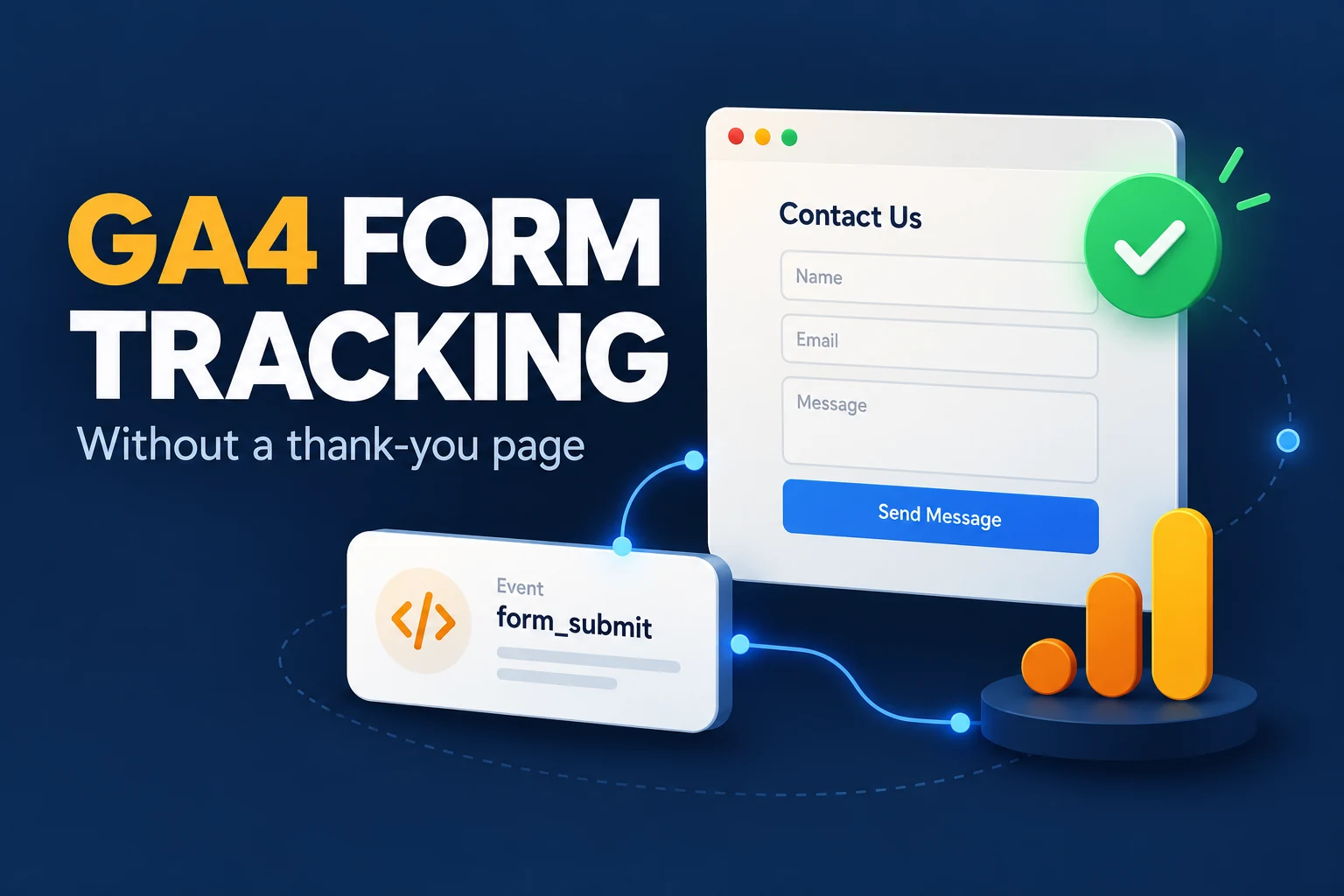
You can track contact form submissions in GA4 without a thank-you page by sending an event when your website confirms that it accepted the submission. Google Tag Manager can listen for that success event and send a generate_lead event to GA4.
This approach suits forms that show a confirmation message on the same page. The visitor submits an inquiry, the form disappears or resets, and a message appears without changing the URL.
The important decision is where tracking starts. A button click shows that someone tried to submit a form. A confirmed success response shows that the website accepted it. Your lead measurement should follow the second action.
Decide what counts as a successful lead
Before opening Tag Manager, define the action you want to measure.
For a contact form, a useful starting definition is a submission that passes validation and reaches the website’s accepted state. That might mean the system saved the inquiry, accepted it into a processing queue or received confirmation from a connected form service.
This does not automatically mean that a sales email reached your inbox. It also does not prove that the inquiry came from a qualified buyer. Those are separate checks.
For this tutorial, the measurement rule is simple:
Send one lead event when the form system confirms one accepted submission.
Google lists generate_lead as a recommended GA4 event for a generated lead, such as one created through a form. Using this name gives the implementation a clear business meaning. developers.google.com
Check your existing form tracking first
GA4 enhanced measurement includes form_start and form_submit events. These can help you understand form interactions, but you should test what they capture on your particular website before treating them as accepted inquiries. Google describes these events as form interaction measurements. Analytics Help
Submit a valid test inquiry, then try an invalid one. Compare the events with what your website actually accepted.
If existing tracking already measures accepted submissions correctly, you may not need another implementation. Adding a second tracking method without checking the first can create duplicate reporting.
The following setup is for websites that need a deliberate success signal, particularly custom forms that submit in the background.
Add a success event to your form
The most direct approach is to push a named event into the data layer inside the form’s confirmed success callback.
The data layer passes information from your website to Google Tag Manager. Google documents using an event property with a Custom Event trigger to activate tags. developers.google.com
For example, place this code inside the existing code path that handles an accepted contact inquiry:
window.dataLayer = window.dataLayer || [];

window.dataLayer.push({
  event: "contact_form_success",
  lead_form_id: "contact_main",
  lead_form_location: "contact_page"
});
This snippet does not submit the form or detect success by itself. Your developer must connect it to the form system’s actual success response.
The field names describe the form, rather than the person using it. contact_main identifies the form, while contact_page identifies its placement.
Do not put this code in a general page-load script or attach it directly to the submit button. Either choice would record actions that do not establish an accepted inquiry.
Confirm application success before firing
An HTTP success response alone may not be enough. Some form endpoints return a successful HTTP status while their response body contains a validation error.
Your implementation should check the form system’s documented success condition. That might be a specific response property or an official callback from the form provider.
For a custom form, the intended sequence is:
- The visitor submits the form.
- The server validates and processes the inquiry.
- The browser receives an accepted-submission response.
- The success handler pushes
contact_form_success. - The page displays its confirmation message.
Keep the tracking event in one place. If both a callback and a success-message observer send it, one inquiry could produce two lead events.
Create a Custom Event trigger in Google Tag Manager
In your GTM web container, create a trigger with these settings:
| Setting | Value |
|---|---|
| Trigger name | Contact form accepted |
| Trigger type | Custom Event |
| Event name | contact_form_success |
| Fires on | All Custom Events matching that exact name |
Use the same spelling and capitalization as the event in your website code.
This trigger listens for the named data-layer event. It does not require a new page URL, a redirect or a thank-you page.
If multiple forms push this event, the trigger can handle them together. The form parameters will distinguish where each accepted inquiry originated.
Create the variables and GA4 event tag
Create two Data Layer Variables in GTM:
| GTM variable name | Data layer variable name |
|---|---|
| DLV – Lead form ID | lead_form_id |
| DLV – Lead form location | lead_form_location |
Then create a Google Analytics GA4 Event tag connected to the correct Google tag or measurement ID.
Set its event name to:
generate_leadAdd these event parameters:
| Parameter | Value |
|---|---|
lead_form_id | {{DLV – Lead form ID}} |
lead_form_location | {{DLV – Lead form location}} |
Attach the Contact form accepted trigger.
This maps your website’s internal success event to the GA4 lead event. The internal name tells GTM when to act; the GA4 event name tells Analytics what business action occurred.
If you want to use these form parameters in standard reporting or explorations, configure the appropriate event-scoped custom dimensions in GA4. Sending a parameter and making it available as a reporting dimension are separate steps.
Avoid assigning an invented monetary value to each submission. Add a lead value only when your business has a defensible method for estimating it.
Keep personal details out of the event
The tracking event needs to identify the form and its location. It does not need the visitor’s name, email address, phone number or message.
Use fixed labels that you control. Avoid reading arbitrary form values into event parameters.
Also check your existing page URLs and tracking configuration. Contact details can leak into analytics through query strings if a form places submitted values in the address bar.
Keep your consent configuration in place while implementing the event. Test how the setup behaves under the consent states your website supports.
Test successful submissions and failures
Open GTM Preview and connect it to the page containing your form.
Complete one valid submission. Find contact_form_success in the event timeline and confirm that the GA4 event tag fired once. Inspect the variables to verify the form ID and location.
Then test the conditions that should produce no lead event.
| Test | Expected lead event |
|---|---|
| Accepted inquiry | One |
| Missing required field | None |
| Invalid email rejected by validation | None |
| Server rejects the submission | None |
| Visitor clicks submit without completing the form | None |
| Success message remains visible | No additional event |
| Page reloads without a new submission | None |
Also test rapid repeated clicks. The form should prevent accidental repeated requests while processing. Tracking should follow accepted submissions, so duplicate prevention needs to work in the form itself.
Finally, verify that the test inquiry reached its intended destination. A tracking event can work while an email notification fails, so check the saved entry, receiving system or inbox separately.
Mark the lead event as a key event
Once the event works correctly, mark generate_lead as a key event in GA4 if accepted contact inquiries are an important business outcome. Google uses key events to identify actions that matter to the business. Analytics Help
Keep the distinction between submission quality and tracking accuracy.
A correctly tracked inquiry may still be spam, outside your service area or unrelated to your offer. Use your inquiry records or CRM to assess those outcomes. Do not interpret every recorded lead as a qualified sales opportunity.
Publish the tested GTM container, then repeat a controlled submission on the live website. Preview testing alone does not confirm that the published version behaves correctly.
What if you cannot edit the form code
Start with the form provider’s documented success event or integration. A provider callback is usually a clearer signal than trying to infer success from a button click.
If no callback is available, an Element Visibility trigger can be a fallback. Configure it to detect a success message that appears only after an accepted submission.
Test this carefully. A message that is already visible on page load, reused across forms or repeatedly inserted into the page can cause incorrect counts.
An embedded form inside a cross-origin iframe needs special consideration. The parent page cannot freely inspect its contents. Look for the provider’s supported analytics integration or documented messaging interface rather than assuming a normal GTM form trigger can read it.
Fix duplicate events before using the reports
If one inquiry produces two generate_lead events, inspect each tracking route.
A common configuration problem is sending the event directly from website code while also sending it through GTM. Another is using two triggers for the same accepted submission.
Automatic form_submit tracking and custom generate_lead tracking can coexist because they describe different measurements. The problem arises if you also convert the automatic event into another generate_lead, or treat both as interchangeable lead totals.
Keep one documented route for the accepted-inquiry event. Record which callback triggers it, which GTM tag sends it and which forms use it. That makes future changes easier to verify.
Measure the form without changing its user experience
A thank-you page is optional for this setup. Your form can stay on the same URL, display a loading indicator and show a persistent confirmation message.
The tracking depends on the accepted-submission signal. It does not depend on redirecting the visitor.
Once that signal works, you can compare traffic sources and landing pages using a more meaningful outcome than button clicks. You can also distinguish a website that receives no inquiries from one whose measurement is incomplete.
If you need help implementing this setup, see my analytics setup and conversion optimization service. I can review the form’s success behavior, configure its lead event and validate the complete submission path.