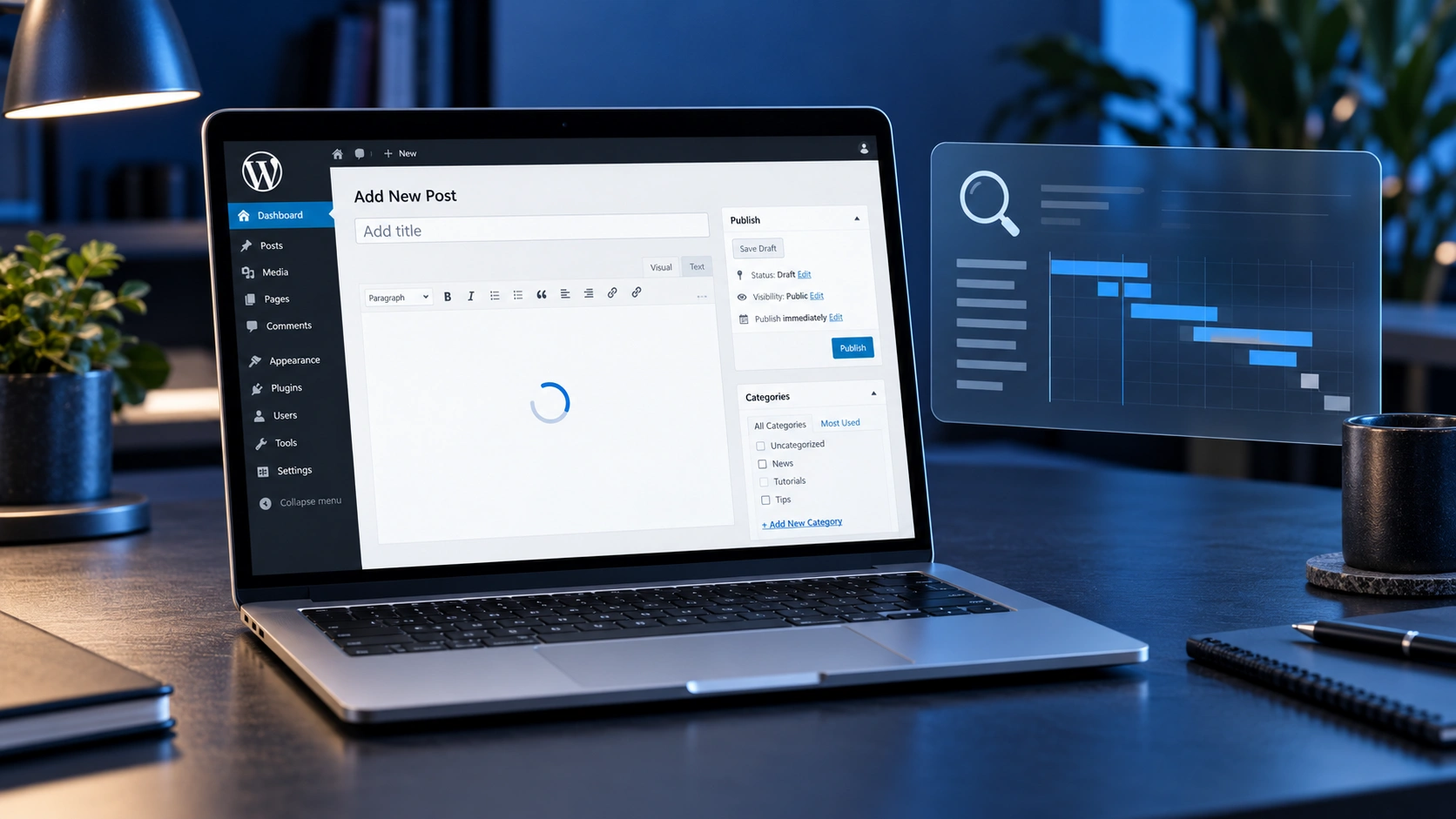
A slow WordPress admin dashboard needs a clear diagnosis before you change hosting or install another performance plugin. Start by finding which actions are slow. Then check the requests behind those actions, test plugin changes on a staging copy, and compare the results. The delay may come from server limits, database work, external services or code that runs only inside the dashboard.
For a business owner, this problem often appears during ordinary work. Opening a page takes too long. Saving an update leaves the editor spinning. Uploading an image feels unreliable. Those delays interrupt publishing and make the website harder to manage. A useful fix should improve these everyday tasks while keeping forms, payments and other important features working.
Find out which dashboard actions are slow
Begin with a few repeatable tasks. Open the main dashboard, load the Pages screen, edit an existing page and save a small change. Write down where the delay starts and whether it happens every time. Use the same account, browser and page for each comparison so you are testing a consistent workflow.
A delay across every admin screen suggests a wider issue. A delay limited to one editor, product list or plugin settings page points toward code used on that screen. If only saving is slow, investigate the save request and anything triggered after it, such as an integration, content check or notification.
Also record when the problem began. A recent plugin update, import, hosting change or new integration can narrow the search. That timing is a clue, not proof. Confirm the connection with a controlled test before deciding what to remove or replace.
Compare the public website with the admin area
Open a public page in a private browser window and compare it with the dashboard. A quick public page does not prove that the server handles uncached work quickly. Public pages may be served from a page cache, while logged-in editing tasks still require WordPress to run code and access the database.
This distinction matters when choosing a fix. Image compression can help a public page load faster, but it will not repair a plugin that waits for a remote service during a dashboard request. A content delivery network can deliver static files efficiently, yet an admin save operation may still wait on the application server.
Treat visitor performance and editor performance as related checks with different measurements. The goal here is to identify what delays a real admin task, rather than chase a better score for an unrelated public page.
Separate browser problems from server delays
Try the same task in another browser or a fresh browser profile. Extensions and local browser settings can affect an editor. If the problem disappears, compare the original browser setup before changing the website.
For a closer look, open the browser’s developer tools and use the Network panel. Repeat the slow action and inspect the request that takes the longest. A long wait for the main response can point toward server-side work or connection delays. A response that arrives quickly followed by a sluggish interface can point toward JavaScript or rendering work in the browser.
These observations narrow the investigation. They do not identify the cause on their own. Keep the request URL, status code and timing with your notes, and avoid sharing cookies, authentication headers or private content in support screenshots.
Make a staging copy before testing changes
Create a current backup and use a staging copy for plugin and theme experiments. Confirm that you can restore the backup, and protect staging from public access. Keep staging emails, payments and external integrations from triggering real customer activity.
Change one thing at a time. If you deactivate several plugins and change the theme together, a faster dashboard tells you little about which change helped. Start with a suspected component, repeat the original slow task and record the result. Then restore the component before testing another hypothesis where practical.
Staging should resemble production closely enough to make the comparison useful. Different hosting resources, a smaller database or disconnected integrations can change the result. A successful staging test still needs a careful production check after the fix is applied.
Check plugin work rather than plugin count
The number of installed plugins is a weak shortcut for judging performance. One plugin can perform expensive work on every admin screen. Several others may do very little during the task you are testing. Focus on what runs and how long it takes.
Query Monitor helps developers investigate WordPress behavior, including database queries grouped by the responsible plugin, theme or function. Its REST API debugging documentation also explains how authorized users can inspect request performance and HTTP activity. Use diagnostic tools temporarily and account for their own overhead when comparing timings.
Look for repeated slow queries, errors and external requests associated with the affected workflow. If a plugin appears responsible, reproduce the delay with and without it on staging. Share the relevant evidence with its developer. Removing a required feature without a replacement may create a larger business problem than the original delay.
Investigate external services and failed requests
Some admin features contact services outside your website. A dashboard widget might retrieve data, an integration might send an update, or a tool might check a remote account. When a synchronous request is slow or fails repeatedly, the screen waiting for it can feel stuck.
Check the destination, duration and response status of suspected requests. Find out whether the integration is needed on that screen and whether its configuration is correct. An expired credential or unavailable endpoint may need a configuration repair rather than a hosting upgrade.
For custom code, a developer may be able to cache suitable responses or move nonessential work to a background task. That decision depends on how fresh the data must be and what happens if the request fails. Avoid disabling security checks or updates simply to hide the wait.
Review database work and hosting limits
Large tables, costly queries and options loaded repeatedly can increase the work behind an admin request. Identify the query or data responsible before cleaning anything. Old-looking records may still belong to active orders, forms or integrations.
WordPress’s performance guidance covers database tuning, autoloaded options and persistent object caching. An object cache can reduce repeated database work when the hosting setup supports it. It does not correct every inefficient query, and a page cache serves a different purpose.
Ask the host to review resource use at the time of the delay. Useful evidence includes CPU usage, memory pressure, database response and PHP worker availability. More memory will not automatically fix a remote-service timeout. More server capacity may help when requests are queuing because the existing resources are occupied. Match the change to the evidence.
Check scheduled work when delays come and go
If the dashboard becomes slow at certain times, compare those periods with backups, imports, scans and other background activity. Several expensive jobs running together can compete with ordinary editing tasks.
WordPress’s WP-Cron documentation explains that scheduled tasks are checked during page loads, rather than being run by a continuously active scheduler. Review overdue or repeated jobs and identify which plugin owns them before changing schedules.
A server scheduler can help make task timing more predictable when configured correctly. Do not disable WordPress’s usual scheduling trigger unless its replacement is working. After any scheduling change, confirm that publishing, emails and required housekeeping still happen.
Confirm that the fix helps real work
Repeat the original tasks after applying the change. Compare the same screens and requests under similar conditions, and run each task more than once. Record whether you measured browser duration, server generation time or a full save operation; those numbers describe different things.
Check important customer journeys as well. Submit a contact form, confirm delivery and test checkout if the website accepts orders. Review the editor, uploads and integrations affected by the change. A dashboard that feels faster is useful only if the website still does its job.
Keep a short record of the cause, the change and the result. That makes future troubleshooting easier and gives the next developer a clear starting point. Remove temporary diagnostic tools when they are no longer needed.
Keep admin performance separate from SEO promises
A faster dashboard can make content maintenance easier, but it is not a direct promise of higher search rankings. Google’s page experience guidance addresses the experience of public pages and explains that good Core Web Vitals do not guarantee top rankings.
Measure visitor-facing performance separately after repairing the admin issue. If both areas are slow, they may share a cause, but each needs its own verification. Focus first on reliable editing, working customer journeys and clear evidence that the chosen fix solved the problem.
Get help with a slow WordPress dashboard
If you need help, send the affected screen, the slow action, when it started and any recent website changes. Include timing notes or sanitized diagnostic screenshots if available. Those details help narrow the investigation before work begins.
My WordPress development services include reviewing and improving existing websites. Tell me about your website, and we can define a practical scope for finding the cause, testing a repair and checking the result.