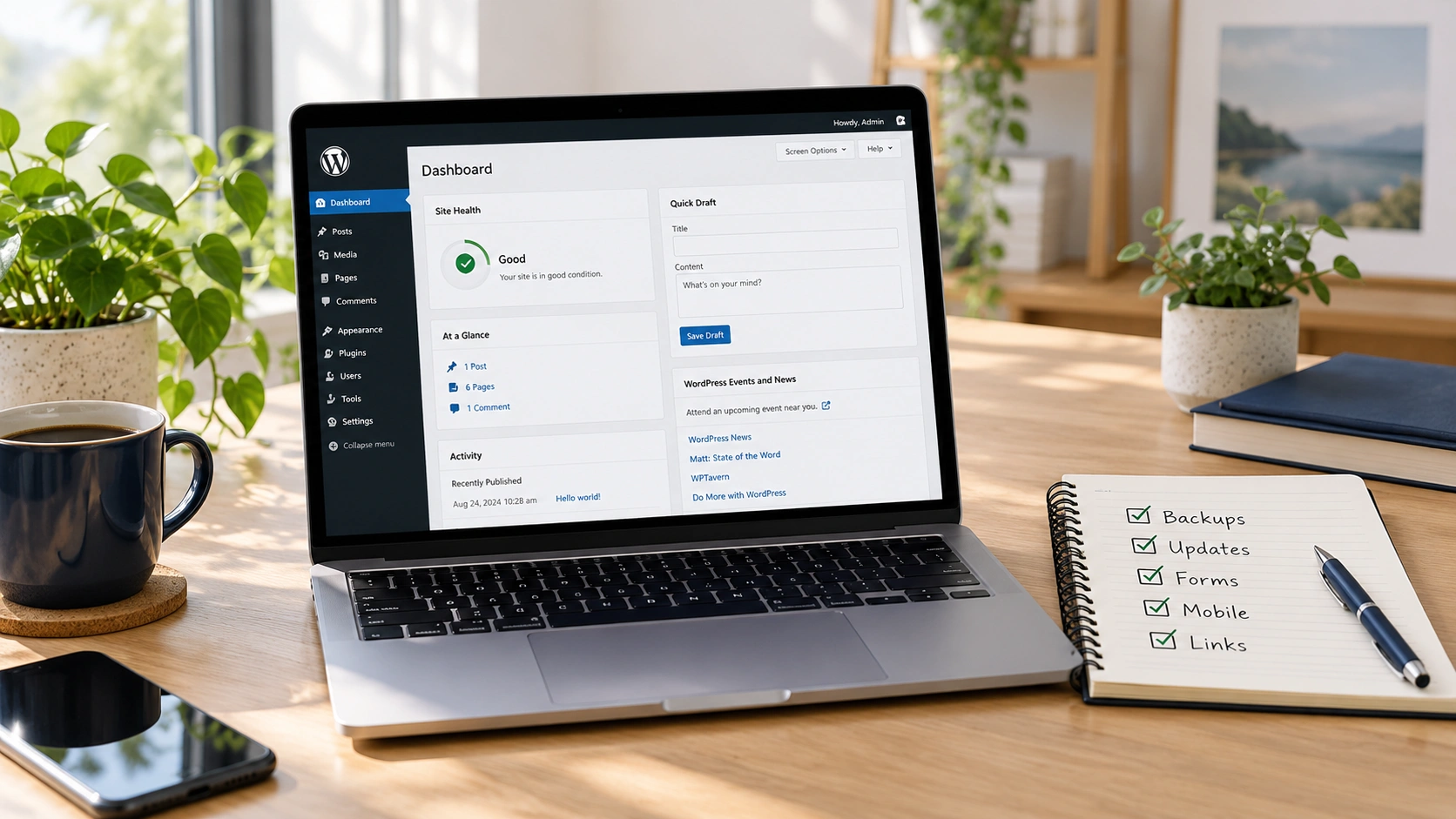
A useful WordPress maintenance checklist covers backups, updates, customer inquiries, mobile usability and the settings that help people find your website. Each check needs a clear result. An update notification disappearing is not enough; the website should still let customers contact you, book a service or place an order.
Use a monthly review to organize routine work, but respond sooner to urgent security issues, failed backups and broken customer journeys. Backup frequency should reflect how often important data changes. A busy store and a small brochure website need different schedules. The routine below helps you decide what to check and how to confirm that it worked.
Start with the website’s most important job
Before opening the update screen, identify the task that matters most to the business. A local service website may depend on calls and quote requests. A shop needs a working checkout. A consultant may rely on a booking tool. These tasks should shape your maintenance priorities.
Choose a small set of pages that support that journey. Follow the path from the homepage to a service or product page and then to the final action. Check that the information is clear, the buttons work and the customer receives a useful confirmation. Record any problem before making changes so you can distinguish existing faults from new ones.
Confirm that backups include files and the database
A backup should cover what you need to recover the website. WordPress stores content and settings in the database, while uploads, themes and plugins involve files. The official WordPress backup guidance explains these different parts of a complete backup.
Check the latest successful backup, its contents and where it is stored. A scheduled job does not prove that a usable copy exists. Keep a protected recovery copy separate from the live website and confirm that the right person can access it. Decide how much recent data the business could reasonably lose, then choose a backup schedule that fits that limit.
Test restoration periodically in an isolated environment. Verify that pages, media and important settings return correctly. Keep test emails and payment integrations from contacting real customers. A recovery plan should also explain who approves a restore, since restoring an older database can remove newer inquiries or orders.
Update WordPress with a recovery plan
Review available WordPress, plugin and theme updates. Read relevant release notes and identify changes that may affect the editor, checkout or integrations. WordPress’s update documentation recommends backing up before an update so the site can be restored if necessary.
Use staging for changes that could affect important functions. Apply the updates, repeat the customer journey and check the admin tasks your team uses. Schedule production work when someone is available to verify the result. Avoid treating the monthly review as a reason to postpone an urgent security fix.
After updating, inspect the public site as a logged-out visitor. Cached pages can behave differently from what an administrator sees. Record the versions changed and the outcome. If an update fails, investigate the failure rather than repeatedly clicking the same button without checking logs or the recovery options.
Test forms through to the destination
Submit a clearly labeled test inquiry through each important form. Confirm that required fields behave correctly, the confirmation appears and the message reaches the intended inbox or connected system. If the form saves entries, check the stored record too.
A successful on-screen message does not prove that an email arrived. The form, mail service and receiving inbox are separate parts of the journey. Verify the subject, reply address and key customer details. Make sure the team knows which test entry can be removed without deleting a real inquiry.
Repeat this check after changes to forms, email delivery or security settings. For a website built to generate leads, a broken inquiry path deserves attention even if every page looks normal.
Review mobile navigation and contact actions
Open the website on a real phone when possible. Use the menu, read a key service page and complete the main action. Check whether a banner covers the form, a fixed button hides content or text becomes difficult to read.
Test phone and email links as well as ordinary buttons. Confirm that they point to the current contact details. Inspect error messages and make sure users can correct a form without losing their work. If a booking or payment tool opens on another domain, follow that part of the journey too.
This review should focus on completing a task. A page can fit a narrow screen while still making visitors work too hard to reach the business.
Look for performance changes on comparable pages
Choose a few representative pages and keep a record of their performance under comparable testing conditions. Review the homepage, an important service page and a page with heavier media or third-party features. Investigate noticeable changes after updates or content additions.
A single score can vary because of network conditions and testing tools. Look for repeatable delays and inspect what changed. Large new images, additional scripts or an integration can affect one template while other pages remain quick.
Check dashboard tasks separately. Opening an editor and saving a page involve different work from loading a cached public page. Report which action is slow so the investigation starts with the right request.
Check search settings and important URLs
Review the pages the business expects people to find through search. Confirm that they load, show the intended content and link to the correct destinations. After development work, check that production has not inherited staging access restrictions or accidental noindex settings.
Inspect the sitemap for the preferred public URLs. Google’s sitemap guidance explains that sitemap submission is a hint and does not guarantee crawling or indexing. Use it to support discovery while investigating errors separately.
Keep modification dates honest. A routine maintenance visit does not mean every page’s main content changed. Update dates when they reflect real changes, and keep redirects, canonical URLs and internal links consistent when moving a page.
Review access, renewals and connected services
Check who has access to WordPress, hosting and the services the website depends on. Remove access that is no longer needed after confirming who owns ongoing work. Give each person the permissions required for their role and use individual accounts where possible.
Review domain, hosting and important service renewal dates. Confirm that renewal messages reach someone who can act on them. A payment problem or expired integration can interrupt a website even when WordPress itself is working.
Keep a protected record of service ownership and recovery contacts. The business should be able to regain control without depending on one former employee or contractor. Avoid including passwords or recovery codes in routine maintenance reports.
Keep a short report with evidence and next actions
A useful report explains what changed, what was tested and what remains unresolved. For example, “Test inquiry received in the sales inbox” is more informative than “Forms checked.” For backups, record the successful copy and the latest restoration test rather than simply marking the schedule as enabled.
Assign an owner and priority to unfinished work. A broken checkout needs a different response from an outdated team photograph. Keep enough detail for someone else to continue the work without repeating the investigation.
A practical order is to confirm recovery options, check the current customer journey, test updates, apply approved changes and verify the live result. Adjust that order when an urgent issue requires immediate action, but keep the evidence and recovery plan clear.
Get help maintaining your WordPress website
If nobody owns maintenance, important checks can be missed while each person assumes someone else handled them. Define which tasks the business will manage and which need developer support. Agree on the testing scope, reporting and response to urgent failures before relying on a maintenance arrangement.
My WordPress development services cover work on existing websites as well as new builds. Tell me about your website, including its main customer journey and current concerns, so we can define a useful scope for updates, testing and repairs.